AI (Artificial Intelligence)

<< Click to Display Table of Contents >>

Navigation:  Getting Started > Install and Configuration > Setup Preferences >

AI (Artificial Intelligence)

Previous pageReturn to chapter overviewNext page

WhisperReporter Ascent integrates with several Ai services, including OpenAI (used by ChatGPT, Microsoft's CoPilot, etc), Google's Gemini, X's Grok, and Anthropic Claude.


Whisper provides complimentary keys and basic models for each of the four services to get you started.  They may not always be available or don't return the responses in the details desired, so it is highly recommended that you sign up for the service(s) you like and obtain a personal API key(s), sometimes referred to as a Secret Key.  Each service and model has their own price points, but all are very inexpensive, priced at per million tokens (words) sent and received, usually less than $5.00 per one million tokens.  Some services provide free usage with a limited number of queries per day, some provide a free introductory period, and others require you to prepay the pay-as-you-go plan. Links are provided in the Personal AI Services tab to get you started.


When you obtain a personal API key, enter it in the appropriate text box and also check it as the default.  You also can subscribe to multiple services, the the selected default will be the one initially selected for AI Text and AI Photo queries.  If other Keys are entered, you will have the opportunity to select a specific service when doing a query.  You will also need to enter the Model you wish to use.  The site will provide one or more Models to choose from, each having their own search algorithms and pricing.  The Complimentary API Services tab shows some of the basic low cost models we use for each service.
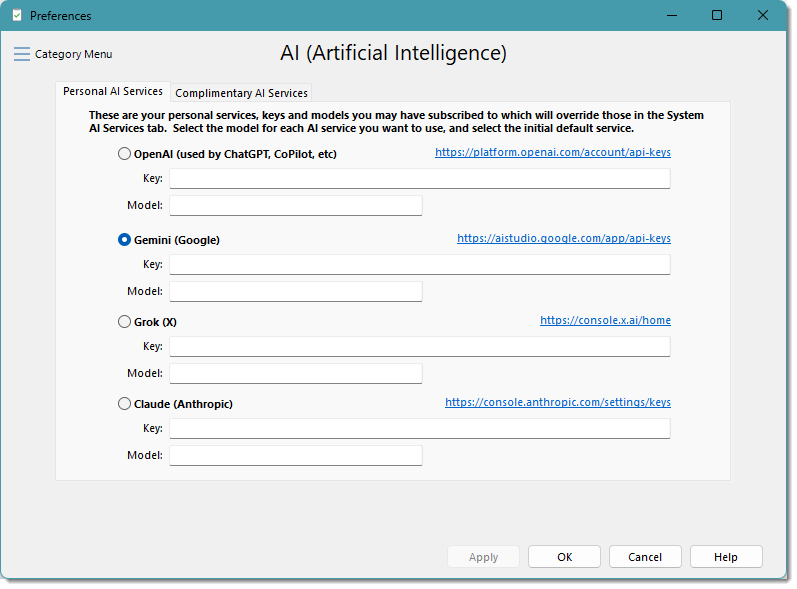
 

AIKeys


Use the link to the far right of each service to get you started on obtaining an API Key and model for that service.  At the time of this writing, Google's Gemini provides a free usage period.


Once you have successfully entered an API Key, you can use the AI Text and AI Photo query features:


AI Text Query
In the main editor, select some text or simply place the caret on any paragraph which will auto select the paragraph.  Then right click and select Use AI to analyze selected text.  Better yet, create a Custom Toolbar Button  to quickly invoke the AI Text Query dialog.  Here you can select the desired service you have subscribed to (your selected default will be preselected), and the query you want the service to perform on the Input Text (the Input Text can be edited if needed).  You can select a query from the dropdown, or enter your own query.  If the manually entered query has not been used before, it will be saved into the AI Text Queries picklist so you can use it again.  Use the gear button on the far right of the Query dropdown to edit the list.


AITextQuery

Click the [Process] button to submit the query to the selected service.  Once the process completes, the Response section will have the result (as shown above).  Clicking the [Copy To Clipboard] button will copy the whole Response, or you can first select what you want from the Response (or modify it), then click [Copy to Clipboard].  Closing the dialog will then allow you to paste the copied text anywhere you want it.


AI Photo Query
In the main editor, select an image.  Then, right click and select Use AI to analyze selected image.  Better yet, create a Custom Toolbar Button  to quickly invoke the AI Image Query dialog.  Here you can select the desired service you have subscribed to (your selected default will be preselected), and the query you want the service to perform.  You can select a query from the dropdown, or enter your own query.  If the manually entered query has not been used before, it will be saved into the AI Image Queries picklist so you can use it again.  Use the gear button on the far right of the Query dropdown to edit the list.


AIPhotoQuery

Click the [Process] button to submit the query to the selected service.  Once the process completes, the Response section will have the result (as shown above).  Clicking the [Copy To Clipboard] button will copy all of the text, or you can first select what you want from the (or modify it), then click [Copy to Clipboard].  Closing the dialog will then allow you to paste the copied text anywhere you want it.