|
<< Click to Display Table of Contents >> Merge two reports |
  
|
|
<< Click to Display Table of Contents >> Merge two reports |
|
This operation allows you to merge the content of one report with another. By default, it will only show reports, no templates (see the option "Not Marked as Template" to toggle this lookup filter option).
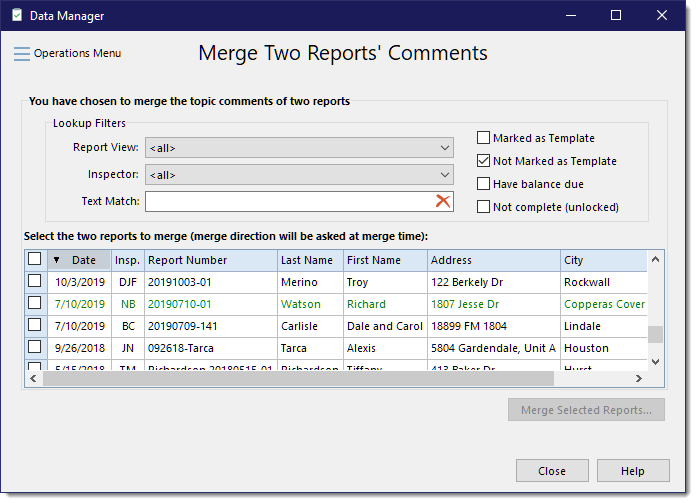
The first thing to do is to select the two reports that should be merged by toggling the checkbox on for the two reports to merge. When two have been selected, the [Merge Selected Reports...] button will be enabled. When you click that button the following dialog will be shown:
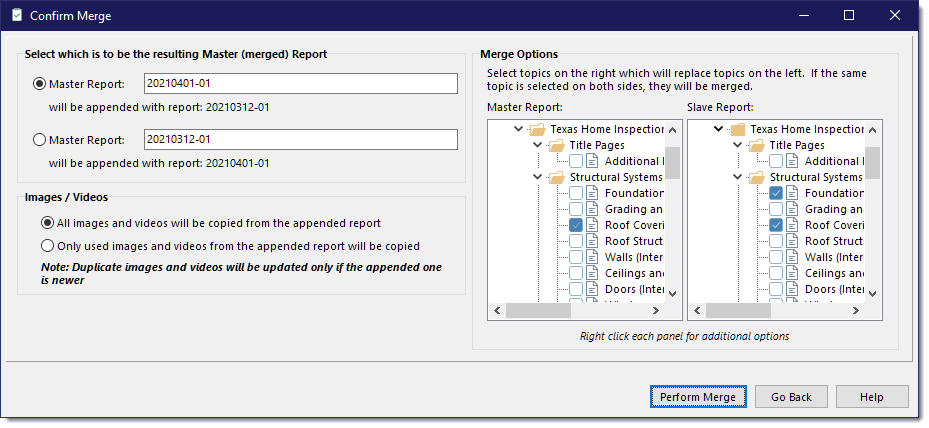
You must then choose which report should be the Master report (the report to receive data) and which should be the Slave report (the report to provide data) and whether you want to copy all images or just the used images. The contents of the Slave report listed will be added to the contents of the Master report based on the Merge Options section. A Standard Merge will skip, merge or replace, based on whether a topic comment and/or topic checkboxes from each side has been modified or not. If using the Custom Merge option, you decide which topics are important to merge and which to skip. You do not typically have to check any of the checkboxes on the Master side since they will be retained as-is if nothing is selected on the Slave side.
In the example image above, we have chosen to do a Custom Merge. The Slave Report side indicates we only want to merge Foundations and Roof Covering, leaving all other topics in the Master Report as-is. Any topics not checked on the Slave Report side are skipped, which is why you don't need to check the topics on the Master Report side unless you want to specifically merge the two together. On the Master Report side, Foundations is not selected but is selected on the Slave side. This will cause the Slave topic to fully replace the same topic on Master side (replaces both the topic comment and the topic checkboxes). For Roof Covering, both the Master and Slave are selected. This implies that the Slave topic comment data should be merged with the Master topic comment data, keeping the topic checkboxes in the Master topic as-is.
A merge will typically append the slave's topic comment to the Master's topic comment if they are different (auto-trims beginning and trailing paragraphs from the Slave that are the same in the Master). If the Master used a <$MergePoint> tag somewhere in the Roof Covering data, the data from the Slave will be inserted at the <$MergePoint> tag instead of being appended to the Master.
When ready, click the [Perform Merge] button to process the merge.
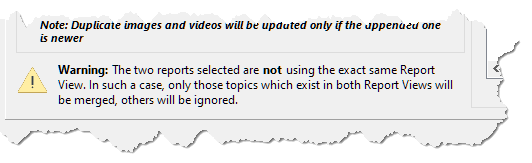
Note: If the two reports chosen did not both use the same Report View, there will be a warning message shown near the bottom of the form indicating that only those topics that exist in both Report Views will be processed: