|
<< Click to Display Table of Contents >> AI ImageQuery |
  
|
|
<< Click to Display Table of Contents >> AI ImageQuery |
|
The AI Image Query allows you to submit a selected image in a topic comment to an AI client that you have subscribed to.
In the main editor, select an image. Then, right click and select Use AI to analyze selected image. Better yet, create a Custom Toolbar Button to quickly invoke the AI Image Query dialog. Here you can select the desired service you have subscribed to (your selected default will be preselected), and the query you want the service to perform. You can select a query from the dropdown, or enter your own query. If the manually entered query has not been used before, it will be saved into the AI Image Queries picklist so you can use it again. Use the gear button on the far right of the Query dropdown to edit the list.
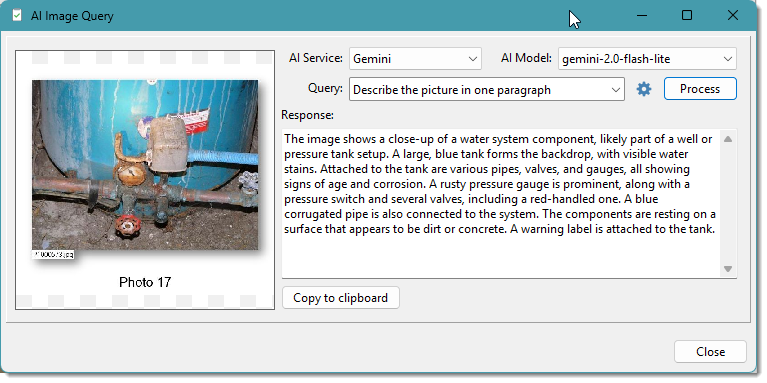
Click the [Process] button to submit the query to the selected service. Once the process completes, the Response section will have the result (as shown above). Clicking the [Copy To Clipboard] button will copy all of the text, or you can first select what you want from the (or modify it), then click [Copy to Clipboard]. Closing the dialog will then allow you to paste the copied text anywhere you want it.
The dialog also shows the number of tokens used. Tokens is the measurement that AI client models base their pricing on. This information gives you some idea of the impact it has on your service subscription.
See also: